Sign up with a broker and connect IB
with EaforexCenter
To continue supporting EA developers
Thank you to everyone for supporting our team

*** Note: Activating our EA ****
1. Sign up for a broker account by clicking the signup link in step 1
2. After signing up, fill out the information in step 2 to request the desired EA and verify the IB connection
3. Once the IB is verified, we will send the EA to the email you provided
Note: Only sign up with the broker you will use the EA with
Form to request use of desired EA
Steps to request free EA activation
Description: This form is for requesting free EA activation and to inform us which EA you want to use
Note: If you’ve completed the form but haven’t received the EA via email within 24 hours (waiting for IB verification)
Please contact us via Facebook: Eaforexcenter
*** Note: Activating our EA ****
If you already have a broker account and cannot sign up through us, you’ll need to request an IB transfer with the broker to join our network
Example information to provide: To request IB transfer with the broker. Use the same method for all brokers, just change the email address.
You can find the email and IB number for each broker in Step 2

Request IB transfer by sending details to icmarkets email accounts@icmarkets.com with the following information:
For example, if you want to transfer/connect your IB to our network for Broker eightcap, here’s a general example of the content to include in your request:
I, Mr. Tanongthuay Kongkhuankoi,
would like to request that the account tanongtouy.kkk@gmail.com be transferred to IB under IB number 68920 or under link Email : https://icmarkets.com/?camp=68920
Requester’s date of birth: July 5, 1987
My last 4 ID digits are 9999
Please process this request
*If additional evidence or details are needed, please contact me
Form to request use of desired EA
Steps to request free EA activation
Description: This form is for requesting free EA activation and to inform us which EA you want to use
Note: If you’ve completed the form but haven’t received the EA via email within 24 hours (waiting for IB verification)
Please contact us via Facebook: Eaforexcenter
Step 1
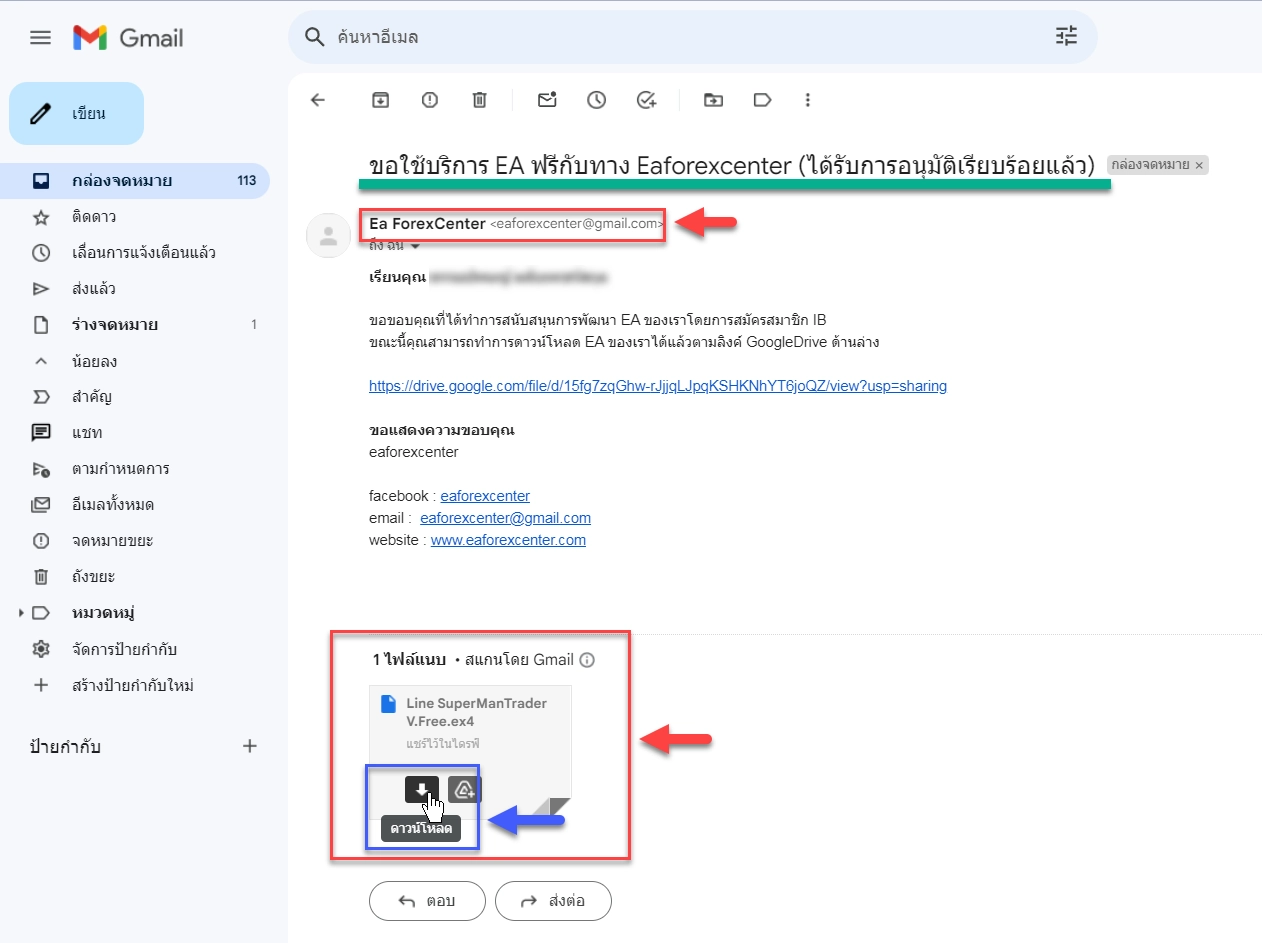
After completing the form, wait 24 hours. Then check your inbox or spam folder for a reply email as shown in the image below. Click to open it.

Step 2
Then download the EA via the Google Drive link by clicking the blue area shown in the image below
Step 3
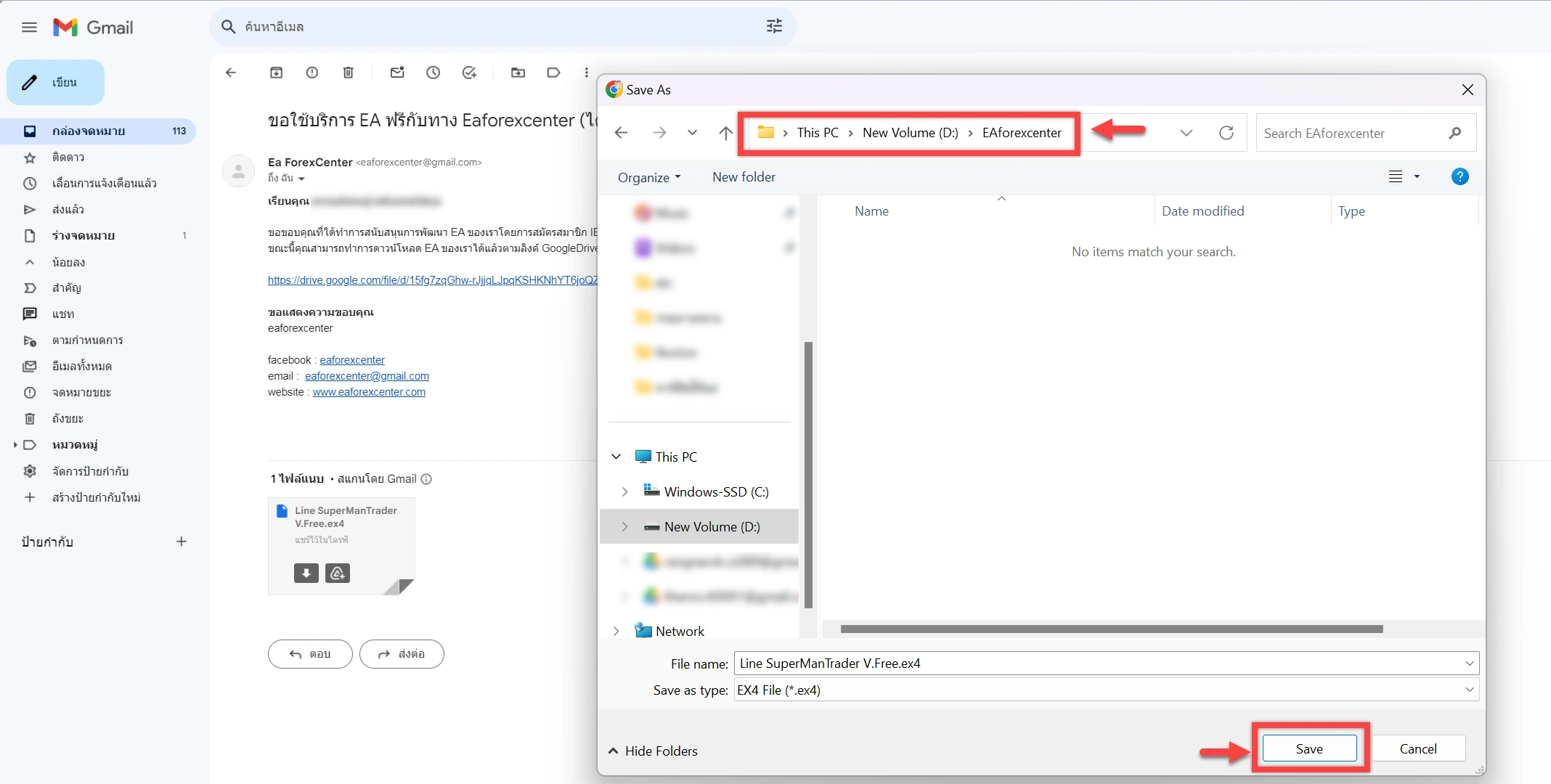
Choose where to save the EA file, then click “Save”
Step 1
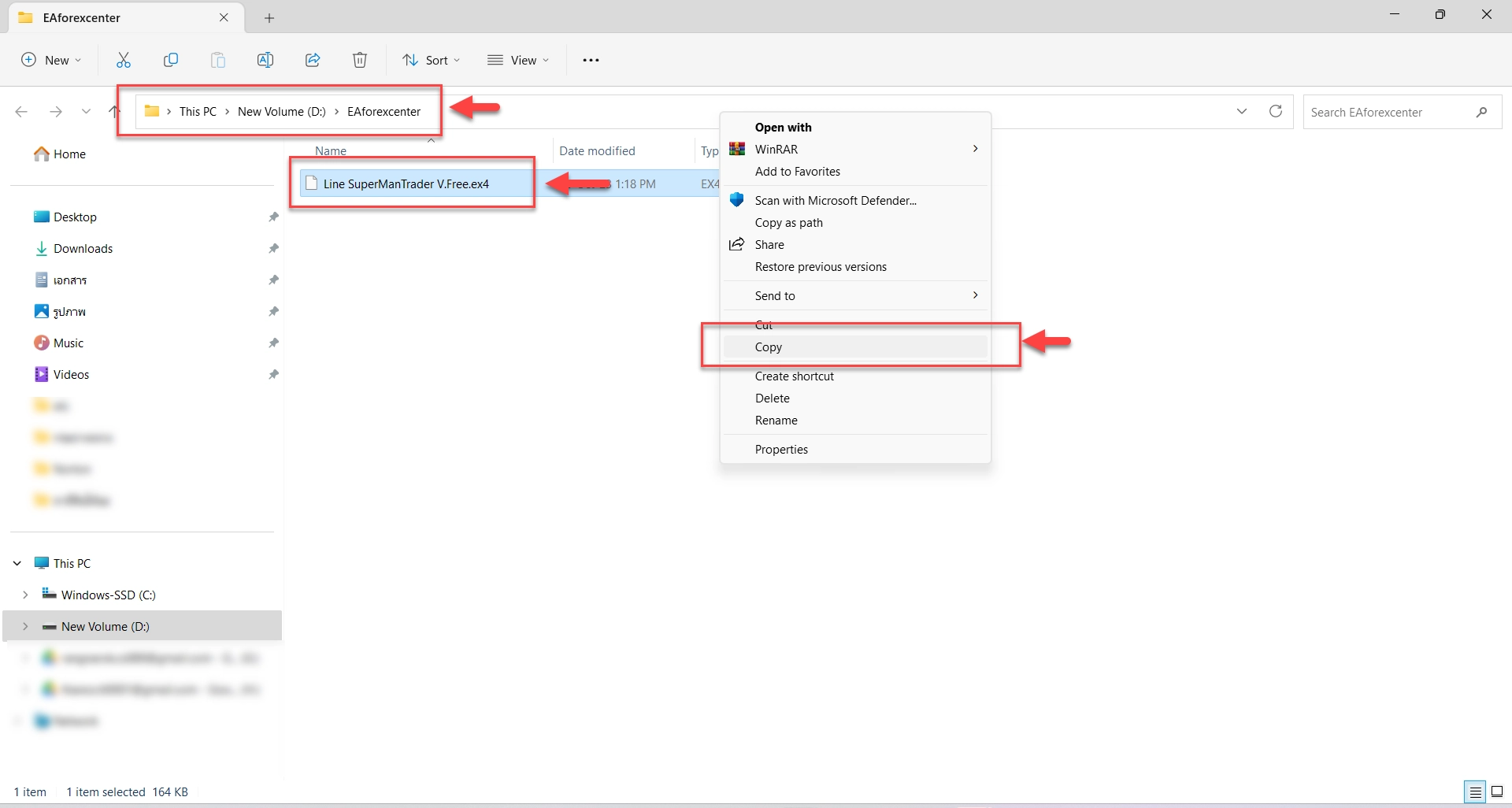
Open the folder with the downloaded EA file. Then right-click and select “Copy” as shown in the example below
Step 2
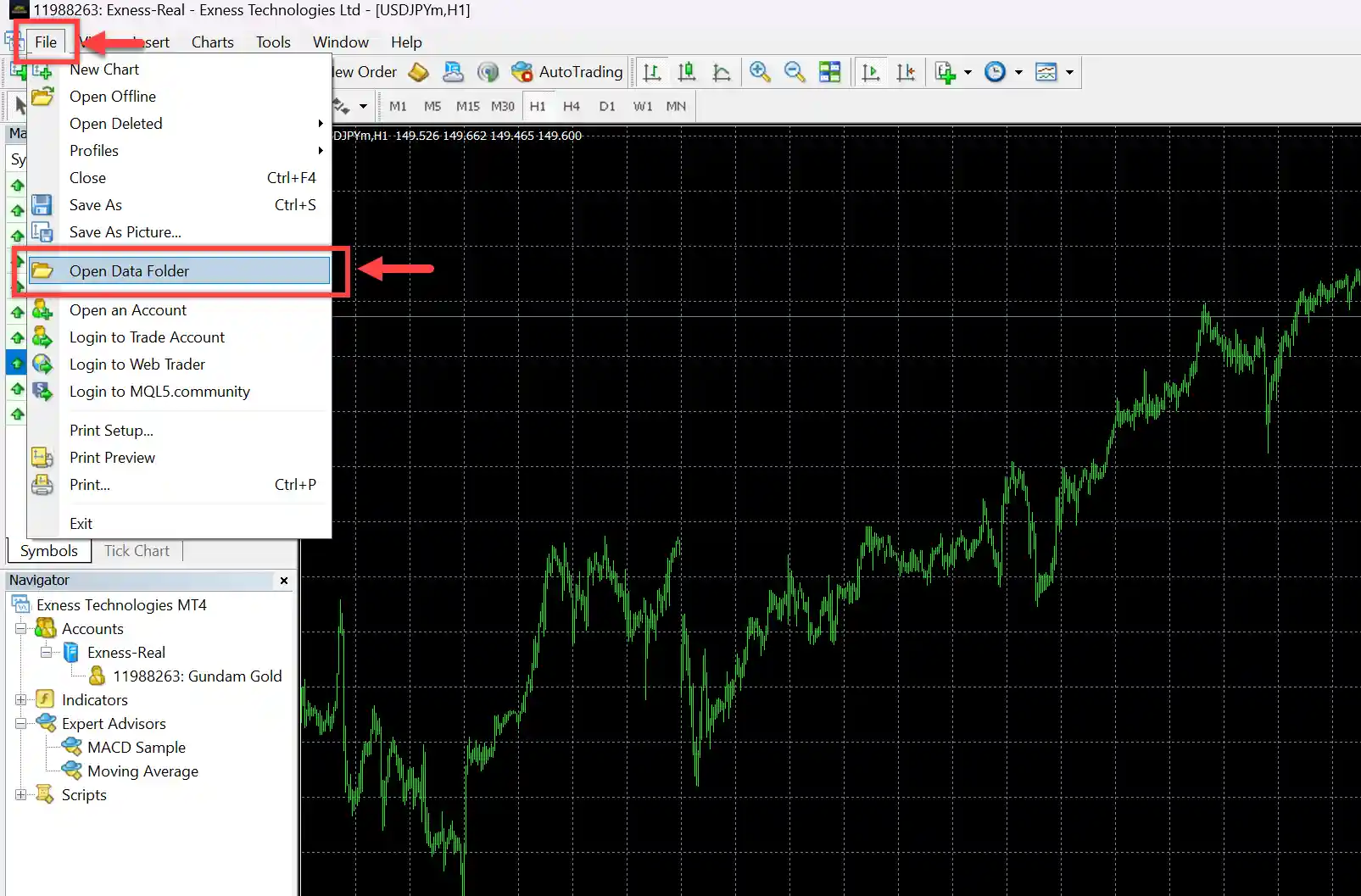
Open the MT4 program for the broker you’ll use the EA with. On the top left, click File > Open Data Folder as shown below
Step 3
A folder window will appear. Go to the MQL4 folder
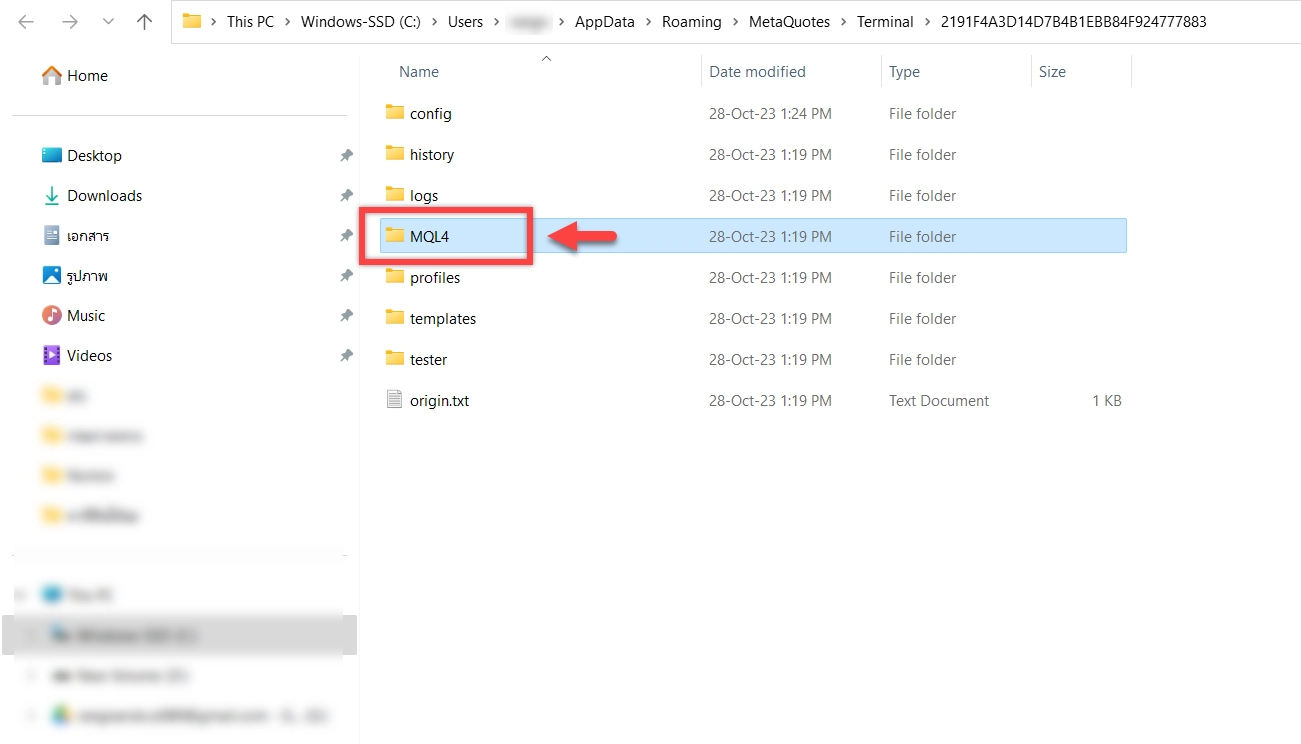
Step 4
Then go to the Experts folder
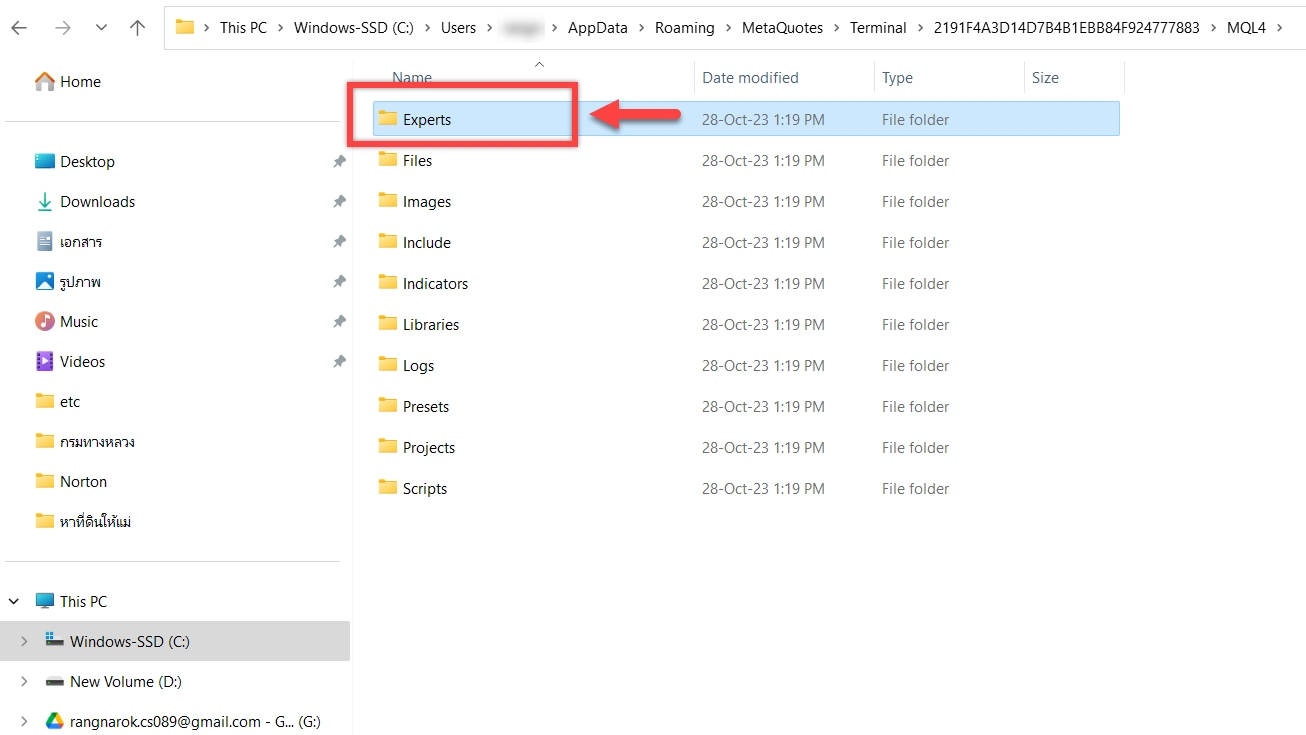
Step 5
Right-click in an empty space and select “Paste” to paste the EA you copied in Step 1
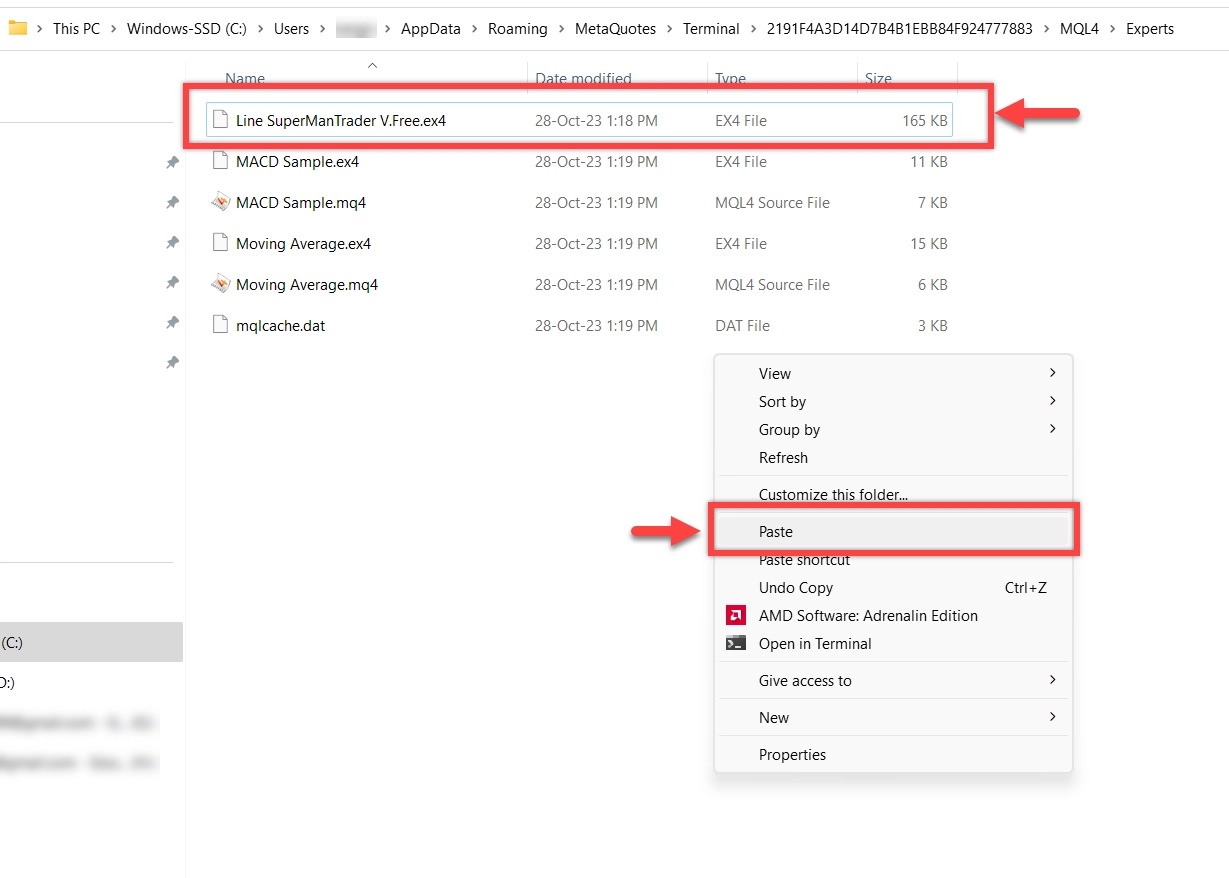
Step 6
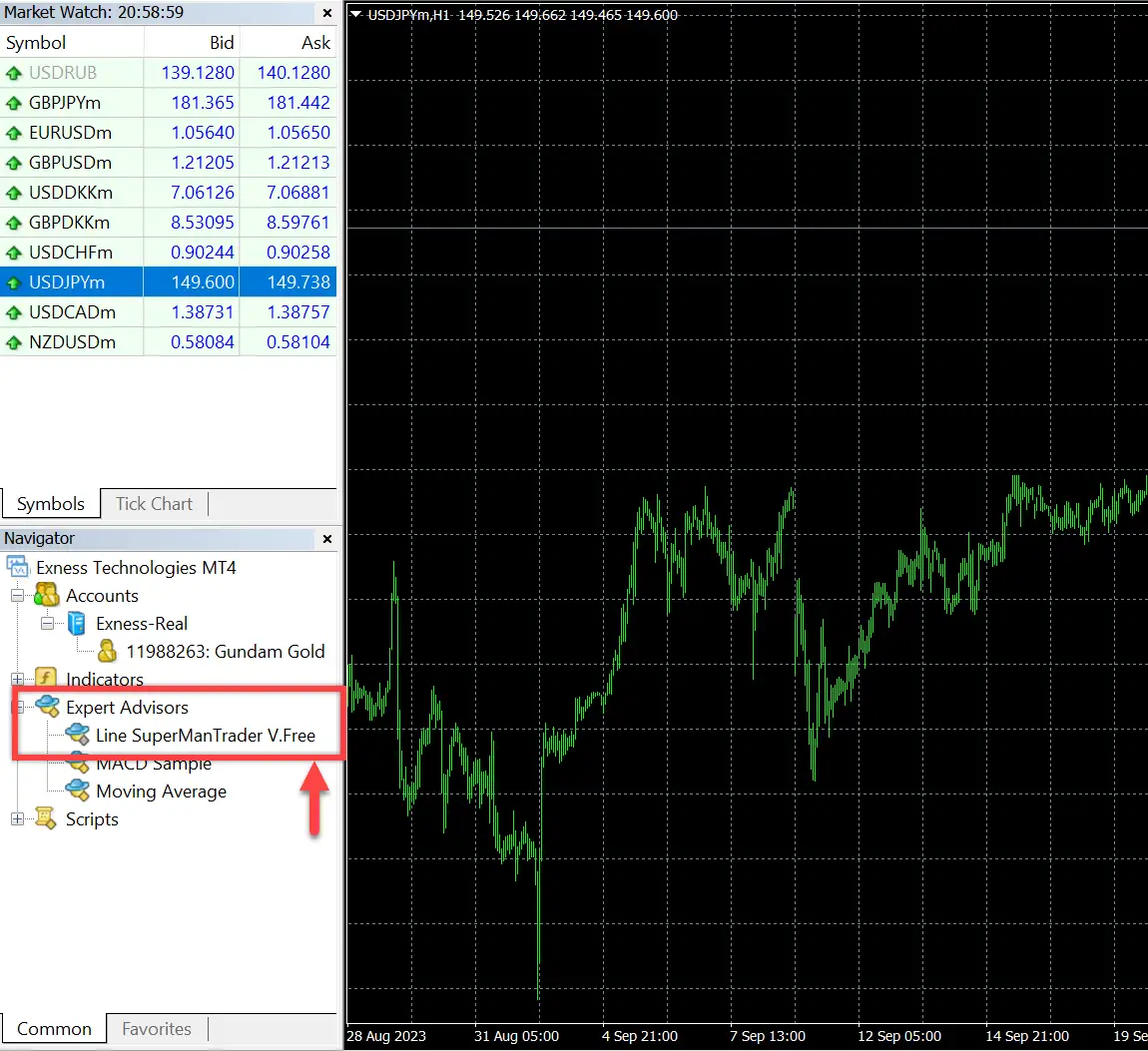
Return to the MT4 window. In the Navigator pane, right-click on “Expert Advisors” and select “Refresh”
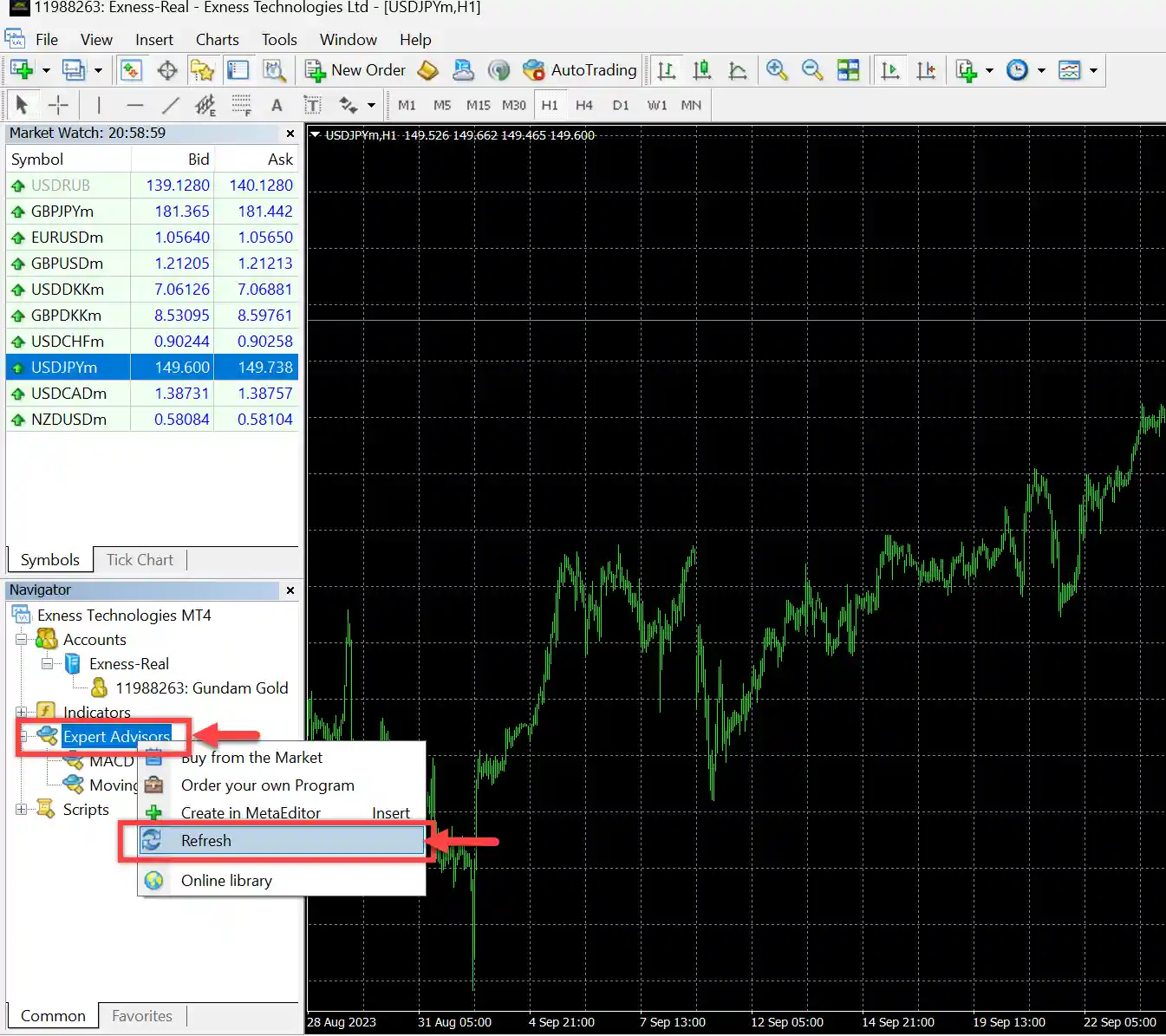
Step 7
After refreshing, the EA will appear as shown in the image below. Installation is now complete.
Step 1
Open MT4. In the top toolbar, select Tools > Options

Step 2
Click “Expert Advisors”. Check the boxes as shown below. In the green box, enter the website link the EA needs (if any). Then click “OK”

Step 3
Go to “Navigator”. Select the EA you want to use, right-click and select “Attach to a chart” to activate the EA

Step 4
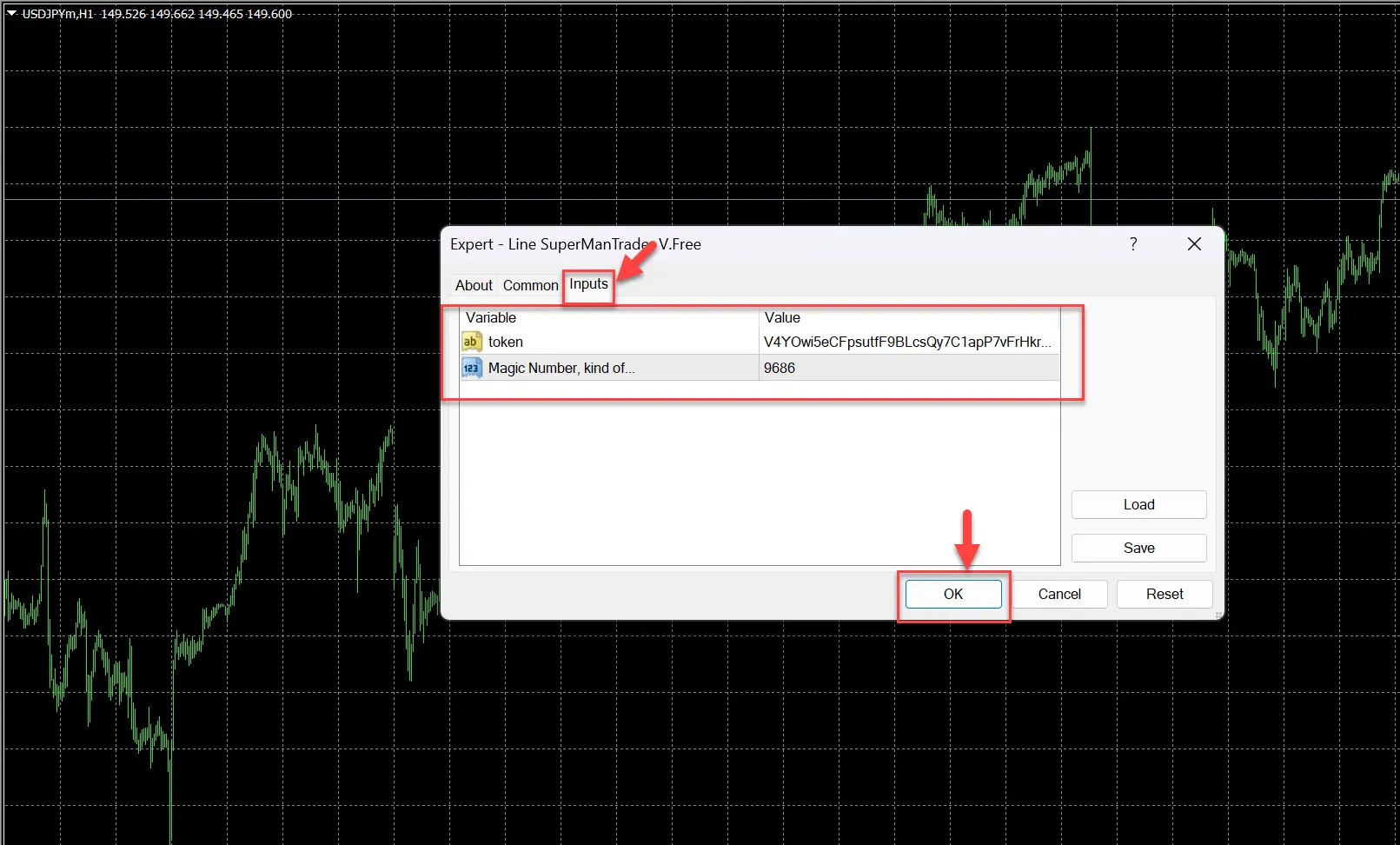
Select Input to set parameters as desired, then click “OK” to start using the EA
Step 5
Check if the EA is working as follows:
1. AutoTrading should be green
2. The EA name should have a smiley face icon
When both conditions are met, you have successfully activated the EA
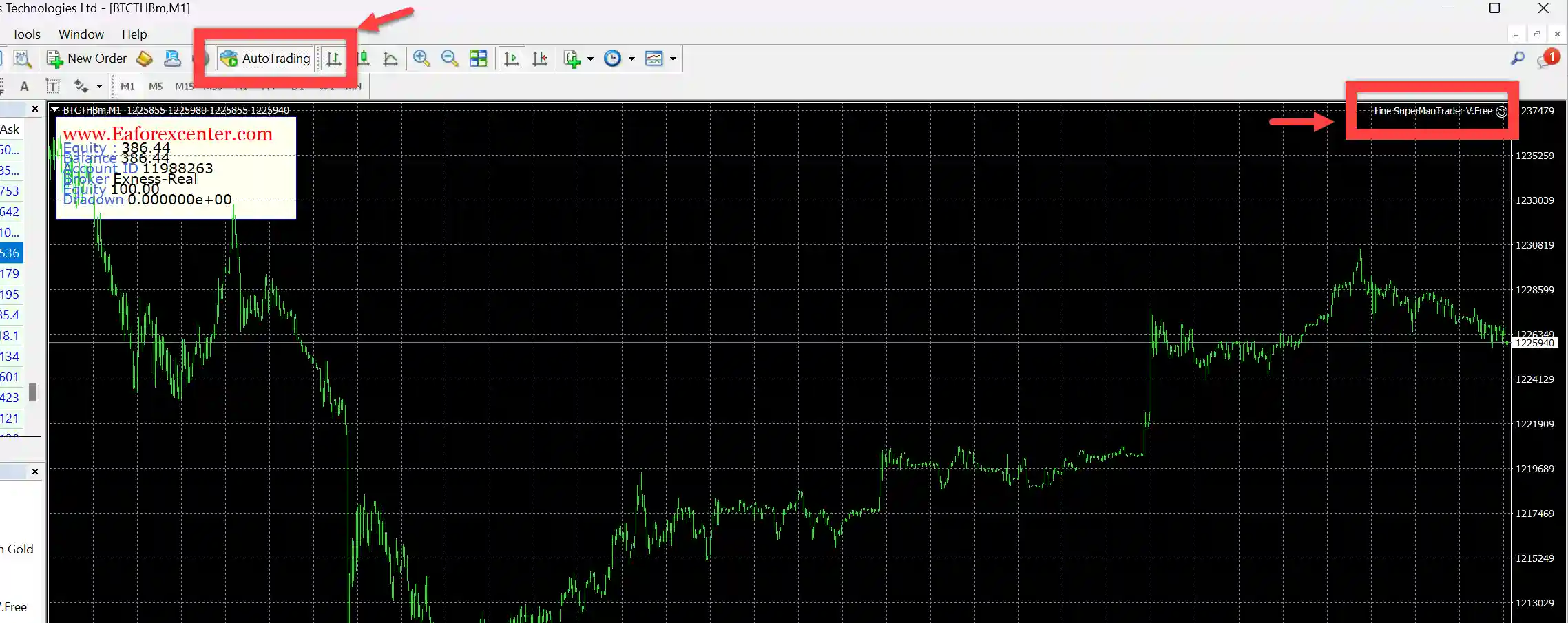
Note: You can stop the EA by clicking AutoTrading once to turn it red
Contact channels and group chat with admin directly
Click the link: Line eaforexcenter
or
Scan QR code


Advantages: